
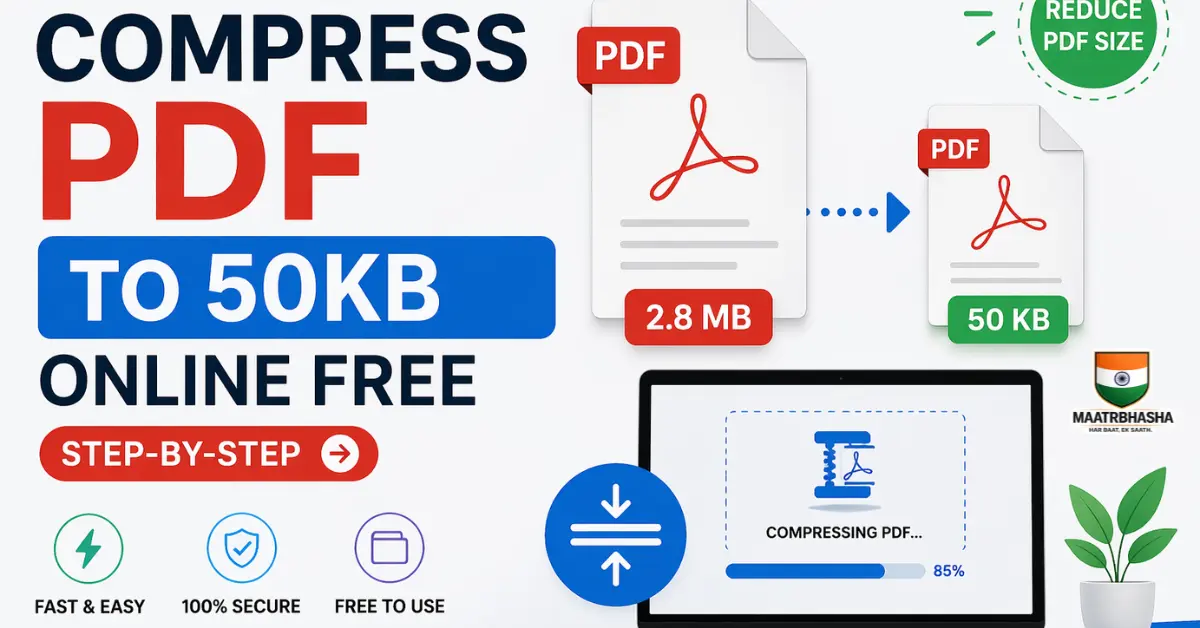
Compress pdf to 50kb online free: Have you ever tried uploading a PDF on a government portal or reduce pdf size to 50kb online — like IRCTC, UPSC, or a bank website — and got rejected because the file was too large? Most Indian government and job portals have a strict limit of 50KB, 100KB, or 200KB. This guide shows you exactly how to compress pdf to 50kb, for free, in just a few clicks.
Whether it’s your Aadhaar card, mark sheet, income certificate, or college application, you’ve probably faced this problem: the PDF is too big to upload. Don’t worry — pdf size reducer for govt forms doesn’t require any paid software or technical knowledge. In this step-by-step guide, you’ll learn how to reduce PDF file size to 50KB or less using free online tools.
⚡ Try it now – No signup needed
What is the easiest way to compress PDF to 50KB?
The easiest way is to use an online PDF compressor tool like QuickToolKit. Upload your file, select high compression, and download the reduced PDF within seconds.
Why Do You Need to Compress a PDF to 50KB?
In India, a huge number of official websites and forms have very strict file size limits. Here are some common situations where you’ll need a PDF under 50KB or 100KB:
- Government job applications (SSC, UPSC, State PSC portals)
- Bank account opening forms and KYC document uploads
- College and university admissions (DU, JNU, central universities)
- Railway portals like IRCTC for concession or tatkal bookings
- Scholarship applications (NSP, state scholarship portals)
- Passport and visa applications
- Income tax portals for document submission
Did you know? Most Indian government portals accept PDF files only up to 50KB–200KB. A scanned A4 page without compression is usually 500KB–2MB — that’s 10x to 40x the allowed size!
What Is PDF Compression?
PDF compression is the process of reducing a PDF file’s size without changing its content. It works by removing hidden data, compressing images embedded inside the PDF, and eliminating redundant code within the file structure.
Think of it like this: imagine your PDF is a packed suitcase. Compression removes the air gaps, folds clothes more efficiently, and removes items you don’t need — without losing anything important. The result is a smaller file that opens and reads perfectly fine.
The good news is that for most text-based PDFs (like certificates, ID documents, and forms), compression can reduce file size by 80–95% — easily bringing a 1MB PDF down to 50KB.
Step-by-Step: How to Compress PDF to 50KB Online Free
Follow these simple steps to compress your PDF to 50KB using QuickToolKit’s free PDF compressor — no registration, no software installation needed.
Step1
Open the PDF Compressor Tool
Go to QuickToolKit.maatrbhasha.com → PDF Tools → Compress PDF to 50KB. The tool opens instantly in your browser — works on mobile and PC both.
Step2
Upload your PDF file
Click the “Choose File” or “Upload PDF” button and select your PDF from your phone or computer. You can also drag and drop the file directly. File size up to 10MB is accepted.
Step3
Select compression level
Choose your compression strength — for most documents you want High Compression to reach below 50KB. If the PDF has important images, try Medium first to preserve quality.
Step4
Click “Compress PDF”
Hit the compress button. The tool processes your file within seconds. No waiting, no queue — it works instantly in your browser.
Step5
Download the compressed file
Once done, you’ll see the new file size on screen. Click Download to save the compressed PDF to your device. Done!
👉 Compress your PDF to 50KB instantly here
Best Free Tools to Compress PDF to 50KB in India
There are several free tools available online. Here’s a quick comparison to help you pick the right one:
Recommended Tools
QuickToolKit
Free, fast, no sign-up. Works on mobile. India-focused with support for small file targets like 50KB.
iLovePDF
Popular international tool. Free tier available but has daily limits and ads.
Smallpdf
Clean interface, but free version limits 2 tasks per day. Requires account for more.
PDF2Go
Good compression options. Slightly slower but works well for scanned documents.
Comparision Table
| Tool Name | Free | Limit | Speed |
| QuickToolKit | Yes | No | Fast |
| ilovepdf | Yes | Yes | Fast |
| Smallpdf | Yes | Yes | Fast |
Tips to Get Your PDF Under 50KB
Sometimes even after compression, the file may still be larger than 50KB. Here’s what you can do:
1. Use maximum/high compression setting
Always select the highest compression level available. For text-heavy PDFs (certificates, letters, mark sheets), high compression barely affects visual quality but drastically reduces size.
2. Convert to grayscale before compressing
Color PDFs are larger than black-and-white ones. If the document doesn’t need color (like a scanned certificate), convert it to grayscale first. This can cut file size by 30–50% before compression even happens.
3. Remove unnecessary pages
If your PDF has blank pages or pages not required for submission, delete them first. Fewer pages = smaller file. Use a merge/split PDF tool to remove pages before compressing.
4. Reduce image resolution inside the PDF
Scanned PDFs contain high-resolution images (300 DPI or more). For government form uploads, 72–96 DPI is more than enough. Some compression tools let you set the target DPI — use it.
5. Re-scan at lower settings
If you’re scanning a document fresh, set your scanner or phone scanning app to 100–150 DPI instead of the default 300 DPI. This creates a much smaller base file before any compression.
How to Compress PDF on Mobile (Android/iPhone)
Most Indian users browse on their phones. The good news is QuickToolKit and most online PDF compressors work perfectly on Android and iPhone browsers — no app download needed.
- Open Chrome or Safari on your phone
- Visit https://quicktoolkit.maatrbhasha.com/compress-image-to-50kb-online-free/
- Tap “Upload PDF” and choose from your Files or Downloads folder
- Select compression level and tap Compress
- Download the file directly to your phone
The entire process takes under a minute on a mobile connection, even on a slow 4G network.
Is It Safe to Compress PDF Online?
This is a common and very valid concern — especially when uploading sensitive documents like Aadhaar, PAN card, or mark sheets. Here’s what you should know:
- Reputed tools auto-delete files within 1–2 hours of upload. Always check the tool’s privacy policy.
- Use HTTPS websites only — look for the lock icon in your browser bar.
- Avoid uploading to unknown or unbranded websites, especially ones with excessive ads.
- For highly sensitive documents, use a desktop tool like Adobe Acrobat or PDF24 which processes files locally on your computer without uploading anywhere.
QuickToolKit Security: Files uploaded to QuickToolKit are processed securely and are not stored or shared. The tool runs compression in your browser session only.
Frequently Asked Questions (FAQ)
Can I compress a PDF to exactly 50KB?
Most tools compress to the smallest possible size. You may get 30KB, 45KB, or 60KB depending on the content. If it lands at 60KB, run it through a second time to push it under 50KB.
Will compression damage the text in my PDF?
For text-only PDFs (typed documents), compression doesn’t affect readability at all. For scanned PDFs (photographed documents), very high compression may slightly reduce image sharpness — but it remains legible for official purposes.
My PDF is a scanned Aadhaar card. How do I compress it?
Upload it to any free compressor like QuickToolKit, choose high compression, and download. Scanned images compress very well — a 1MB scanned Aadhaar can usually be brought to 40–60KB easily.
Is there a limit on how many times I can compress a PDF?
No. You can compress a PDF multiple times. However, each pass reduces quality slightly. Usually 1–2 passes are enough to reach the target size.
What if the PDF is still above 50KB after compression?
Try converting it to grayscale first, then compress. You can also delete unnecessary pages or re-scan the document at a lower resolution (100 DPI) using a phone scanner app like CamScanner or Adobe Scan.
Conclusion
Compressing a PDF to 50KB doesn’t have to be complicated. With free online tools like QuickToolKit, you can reduce your PDF file size in under a minute — right from your phone or computer, without installing anything.
Whether you’re submitting documents for a government job, bank application, college admission, or scholarship — follow the 5 simple steps in this guide and you’ll never face a file-too-large error again.
If you found this guide helpful, share it with friends or family who frequently deal with government portals and official form submissions in India.